
Support Docs
How do I create a competition?
Here you can find how to create a competition from start to finish following each simple step.
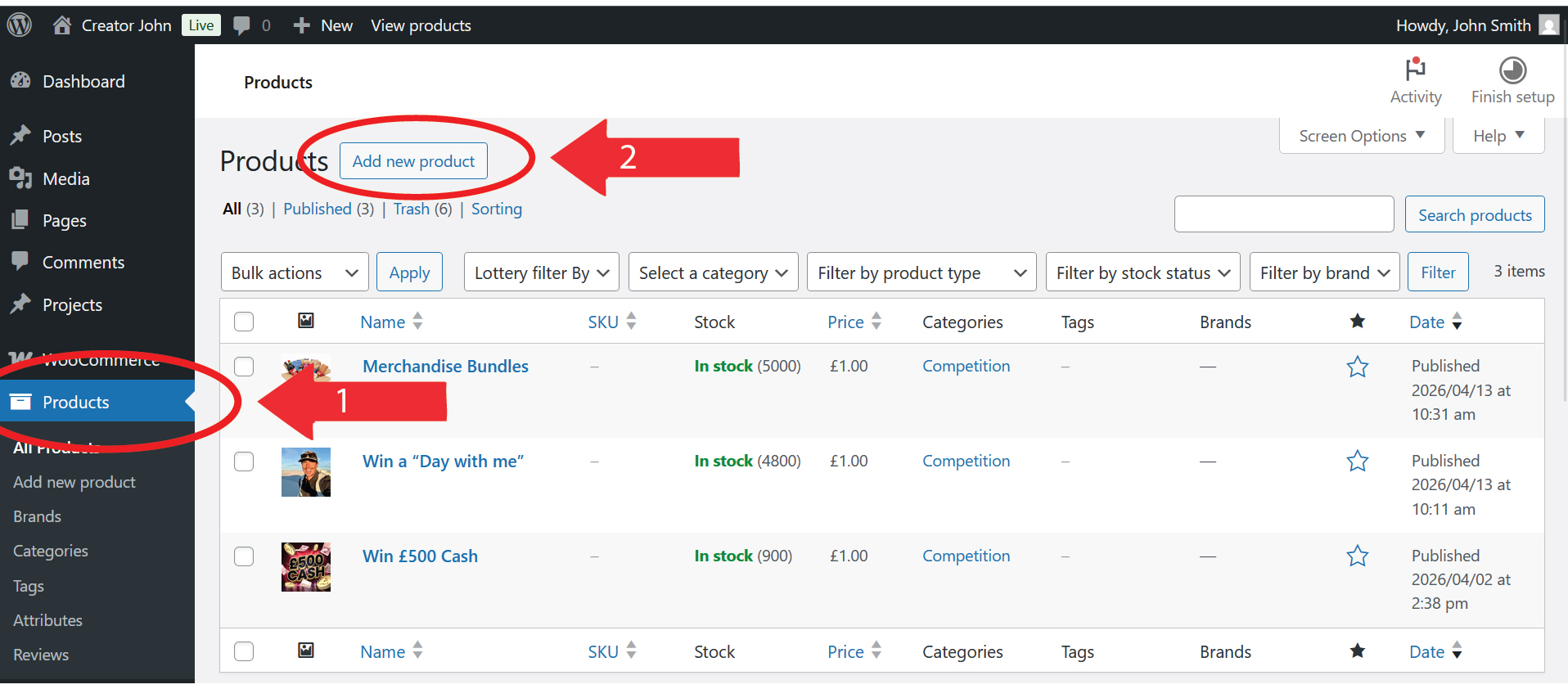
1) Click “Products” from the side menu.
2) Click “Add Products“
3) Enter the product name, such as “Win £1000“, enter you Product Description and upload a photo of your competition.
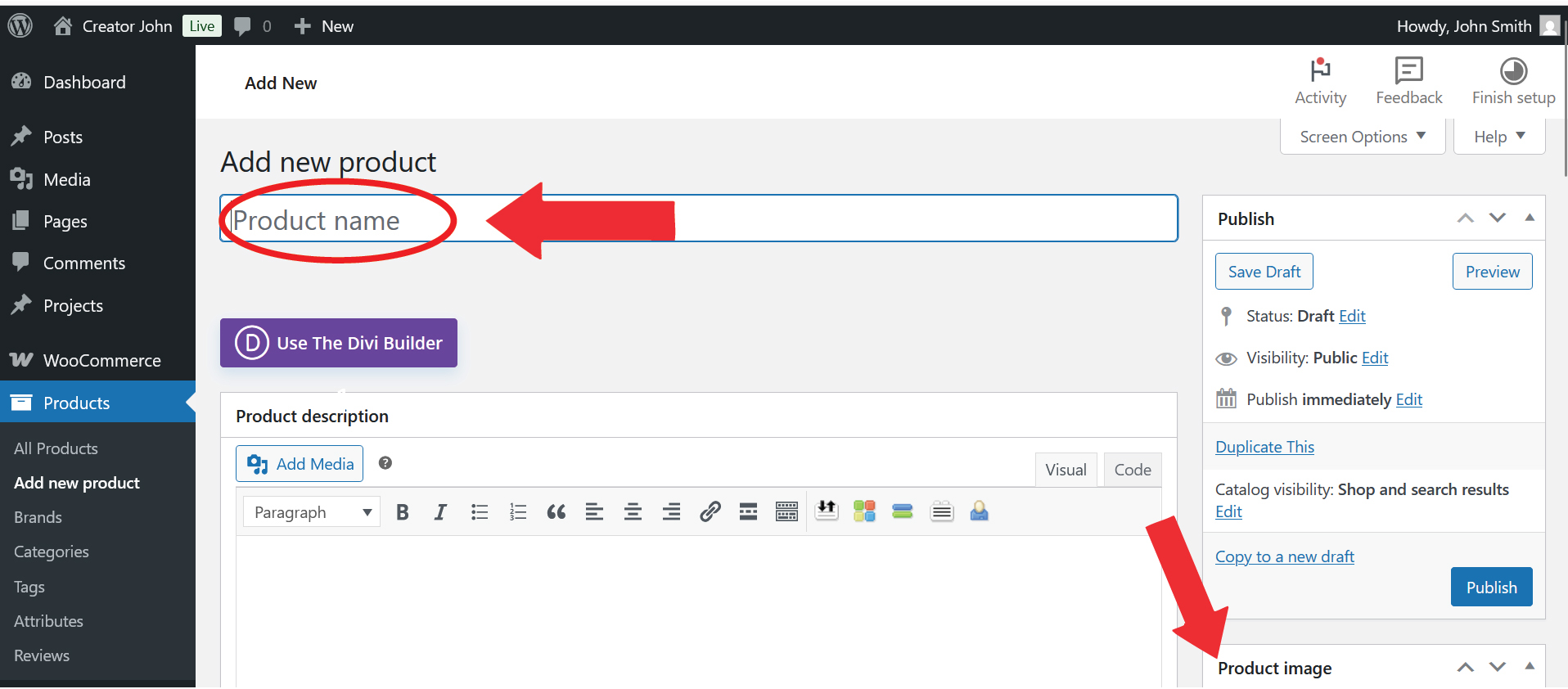
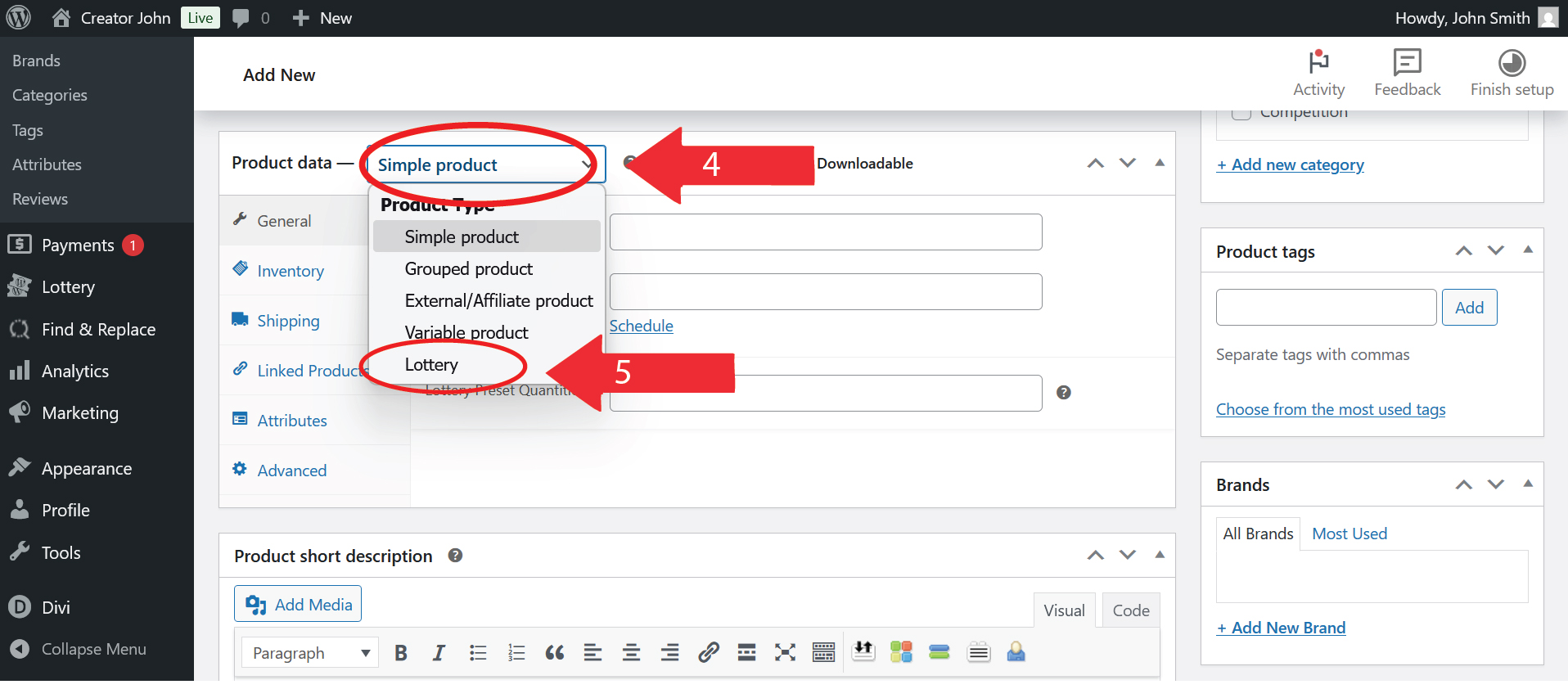
4) Scroll down till you see “Product Data” and click the dropbown box next to it.
5) Select “Lottery“.
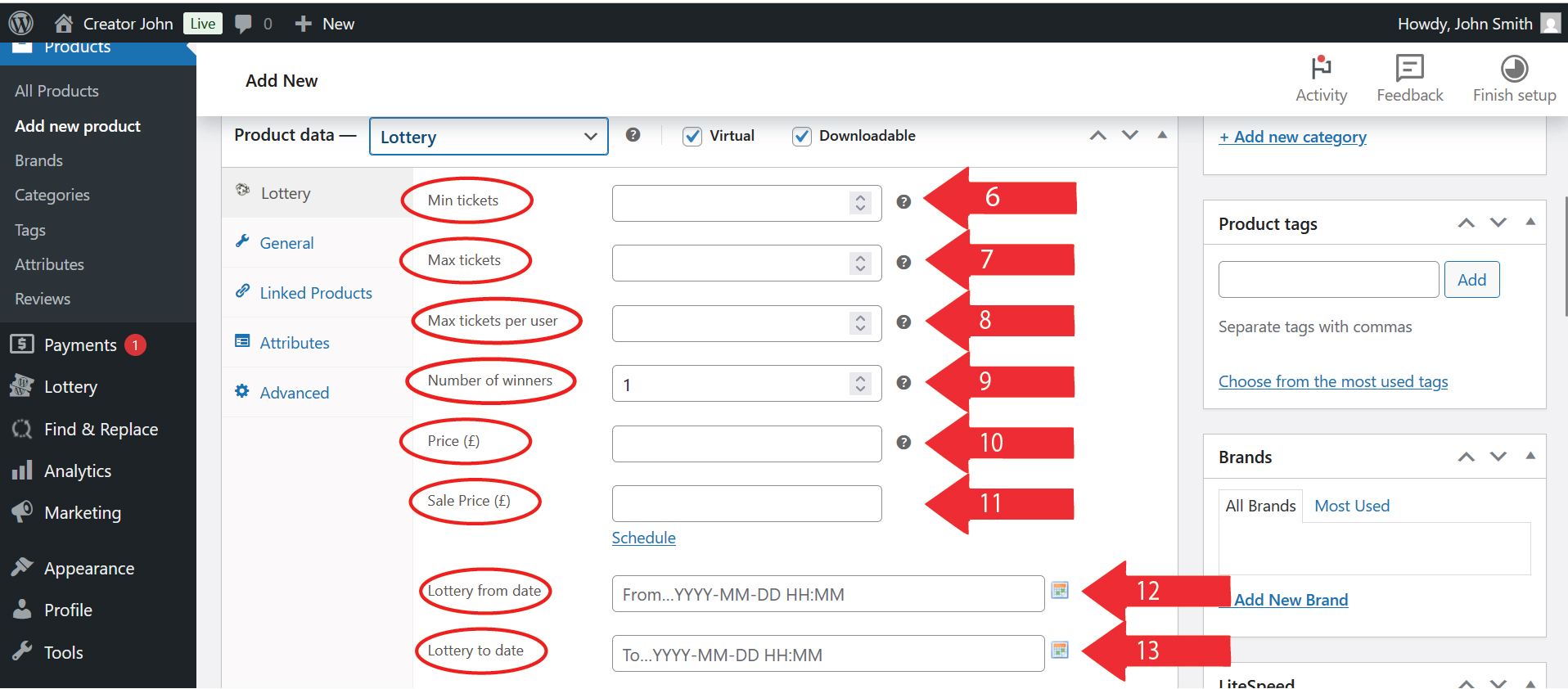
Enter your competition settings:
6) Min Tickets – Minimum tickets to be sold
7) Max Tickets – Maximum number of tickets to be sold for the competition
8) Max tickets per user – The Max number of tickets one user can buy
9) Number of winners – Number of possible winners
10) Price – Price of each ticket. Enter zero for free competitions.
11) Set a Sale Price
12) Set the competition start date
13) Set the competition end date
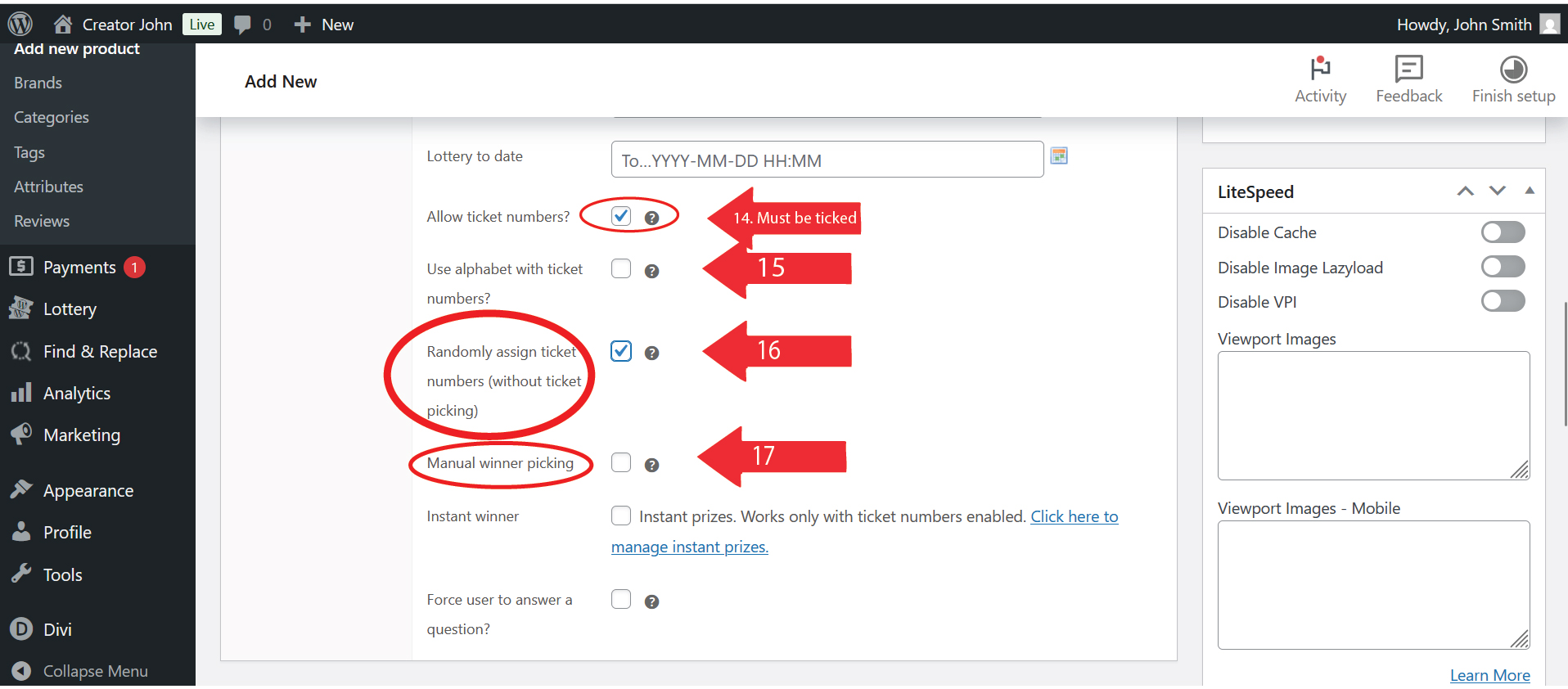
14) Tick “Allow ticket numbers”.
15) Use alphabet with ticket numbers? – This feature allows ticket numbers A1-A100, B1-B00, etc.
16) Randomly assign ticket numbers (without ticket picking) – tick this box if you wish users to be allocated random ticket number(s). Untick this box if you wish users to choose their own ticker numbers.
17) Manual winner picking – by Ticking this box you can drawn the winner however you wish, such as a live draw. Once you have drawn your winner(s) you can enter winning number(s) manually once competition has finished. You can export all your entries by following the steps here. By leaving this box unticked winner(s) will be picked automatically and randomly by our system as soon as the competition ends.
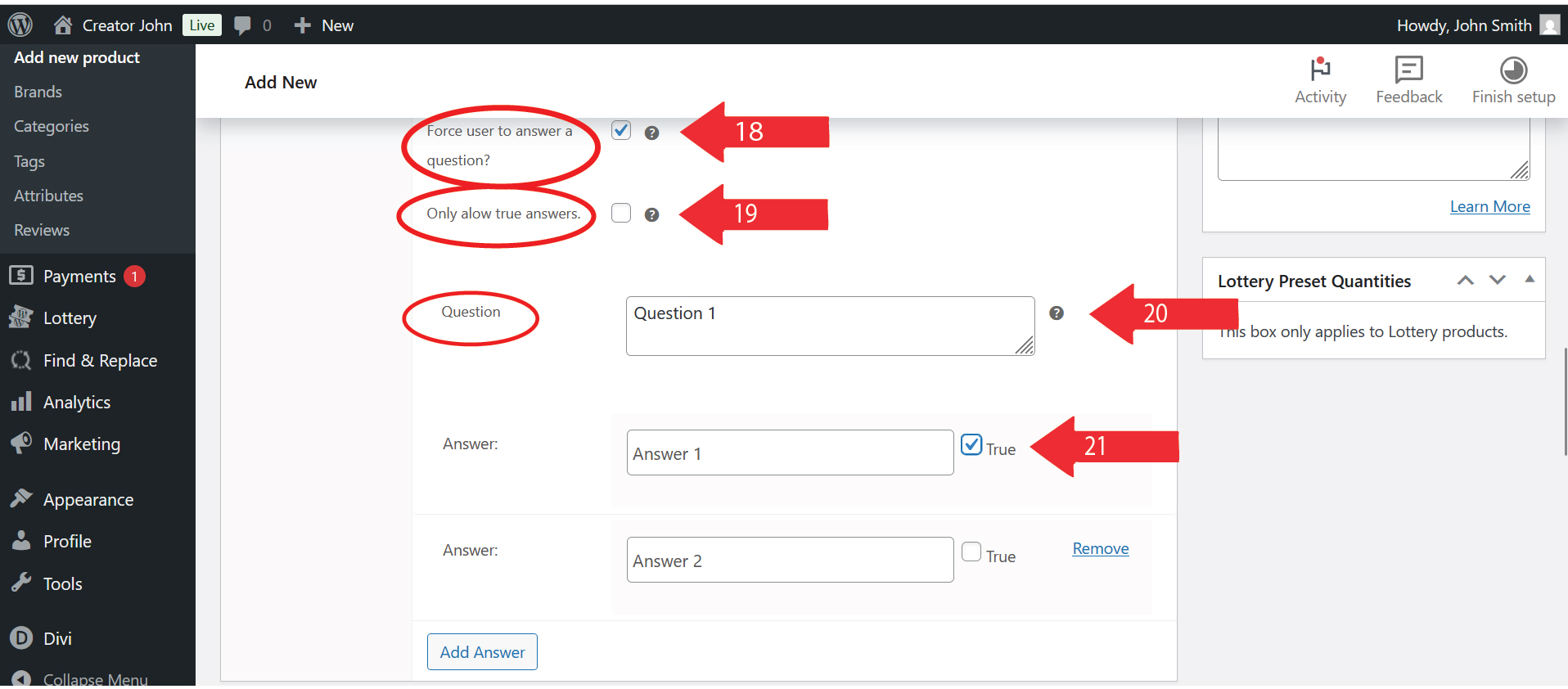
18) Force user to answer a question? – tick the box to add this feature. This forces users to answer a question when entering the competition.
19) Only allow true answers. – Only allows user to select the correct answer.
20) Question – ask the user a question.
21) Answer – Enter 2 or more answers and tick “True” by the correct answer.
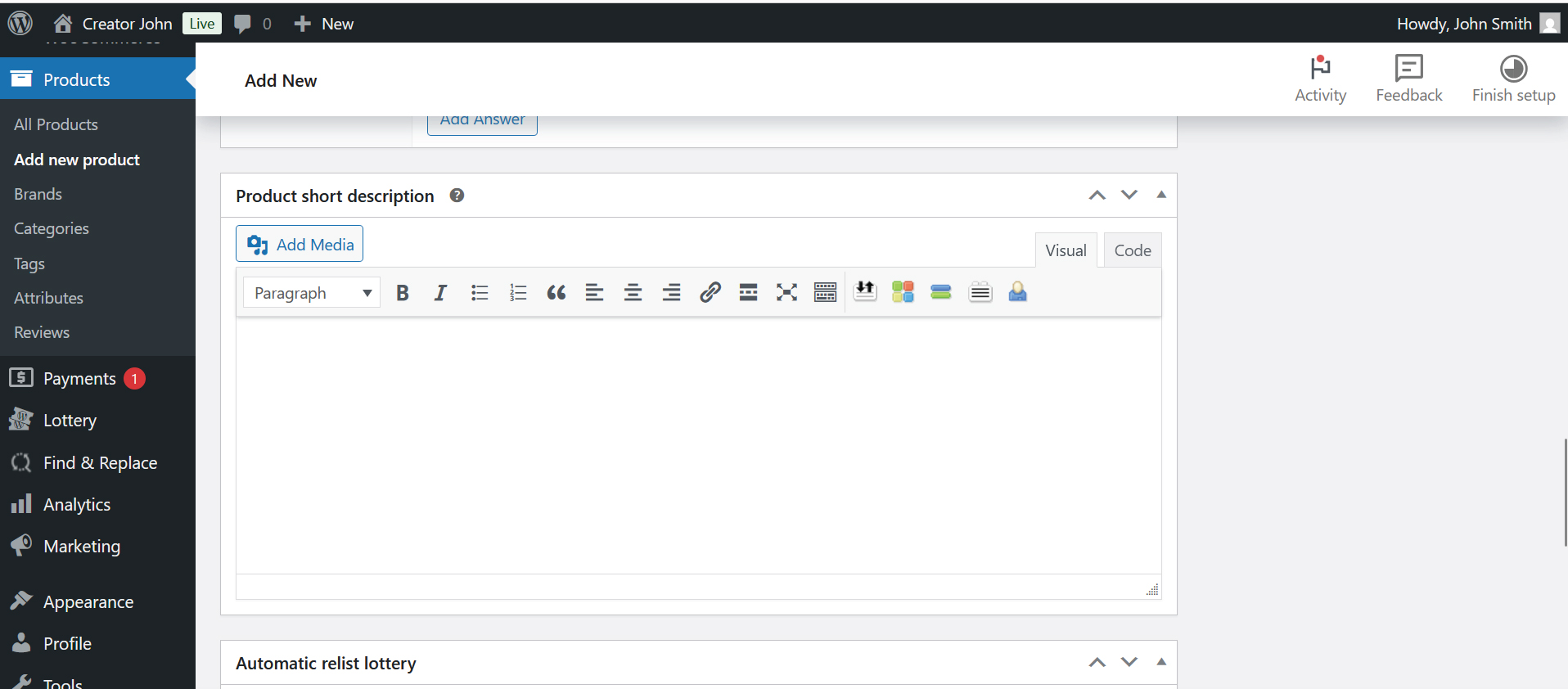
22) Add a description of your competition
23) How do I change the pre-set quantities?
When a user is buying ticket(s) they have pre-set quantities button to encourage them to buy more tickets. (Example below.)
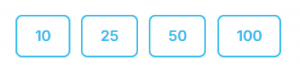
To change these go to:
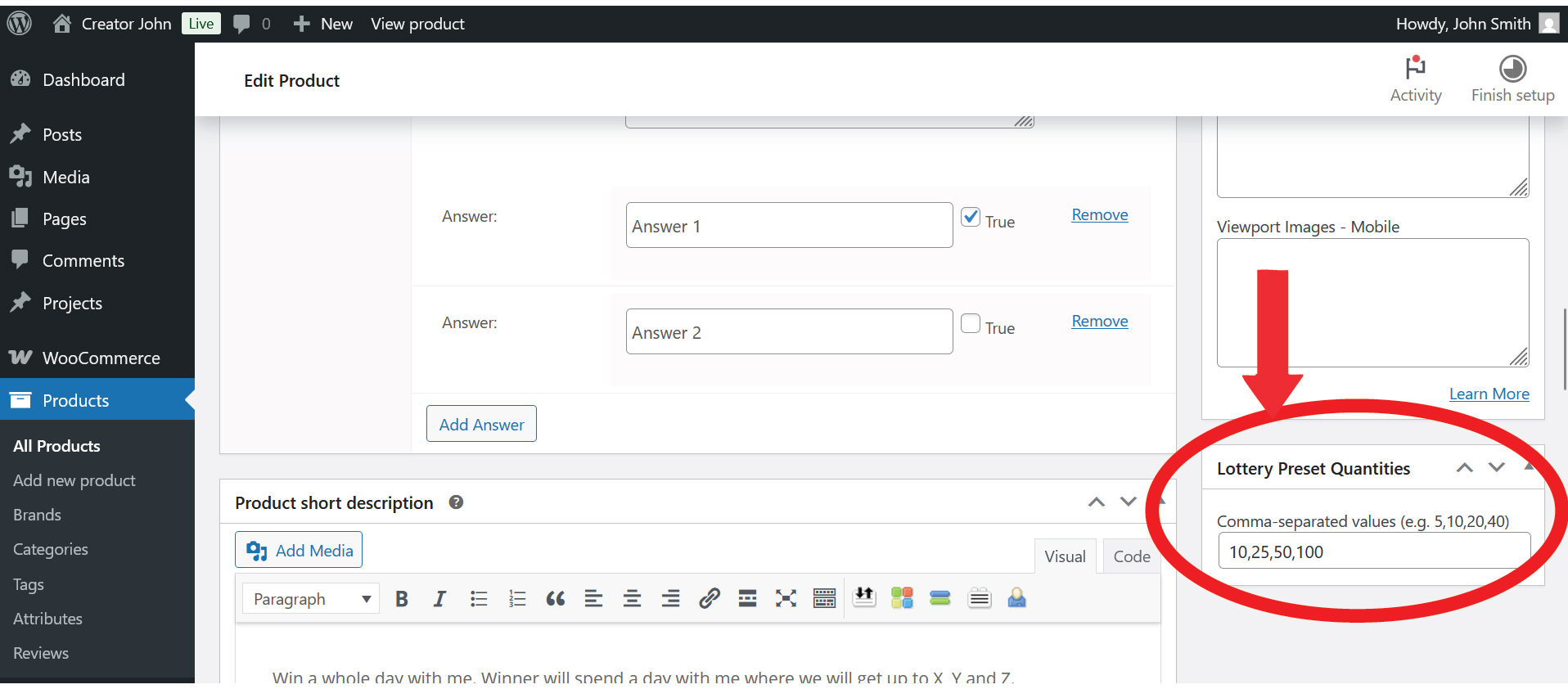
1) Go to “Products” on the left had side menu, find the competition you wish to edit and click “Edit“. Scoll down till you see “Lottery Preset Quantities” and edit the numbers. Remember to include commas after each number.
24) How do I set a recommend default spend?
For example, if you are selling tickets at £1 per ticker, and you want to encoure a user to buy 10 tickets, you can set a recommend default amount that will be pre-selected for them when they view your competition. The example below shows it pre-set at “10 tickets”.

The change this pre-set go to:
1) Click “Woocommerce” and click “Settings” on the left hand side menu.
2) Click “Products” at the top menu and scroll down to “Lottery Settings” shown below.

How do I select a winner?
When creating your competition you can either:
1) Automatically make a winner be randomly generated by our system when your competition ends. The winning ticket number and name will automatically be shown on the page.
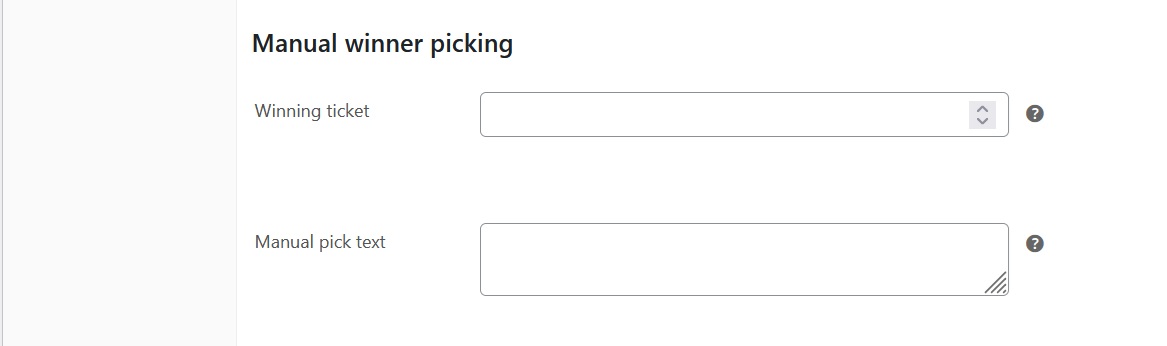
2) You can export your entries and manually select a winner yourself at random. Such as a live draw or however you wish to draw the winner. You can find how to export your entries here. Once you have drawn the winner you can then update the page to show the winning ticket number and name. To update the page with the winner you go to “Products” on the left side menu, select the competition, scroll down till you see “Manual winner picking” and enter the winning ticket number and message. Once updated the winner will automatically receive an email letting them know they have won. You would still need to contact them yourself to arrange delivery of their prize.
How do I contact the winner to arrange delivery of prize(s)?
Go to:
“Products” in the left hand side menu, select the product/competition and click “Edit“.
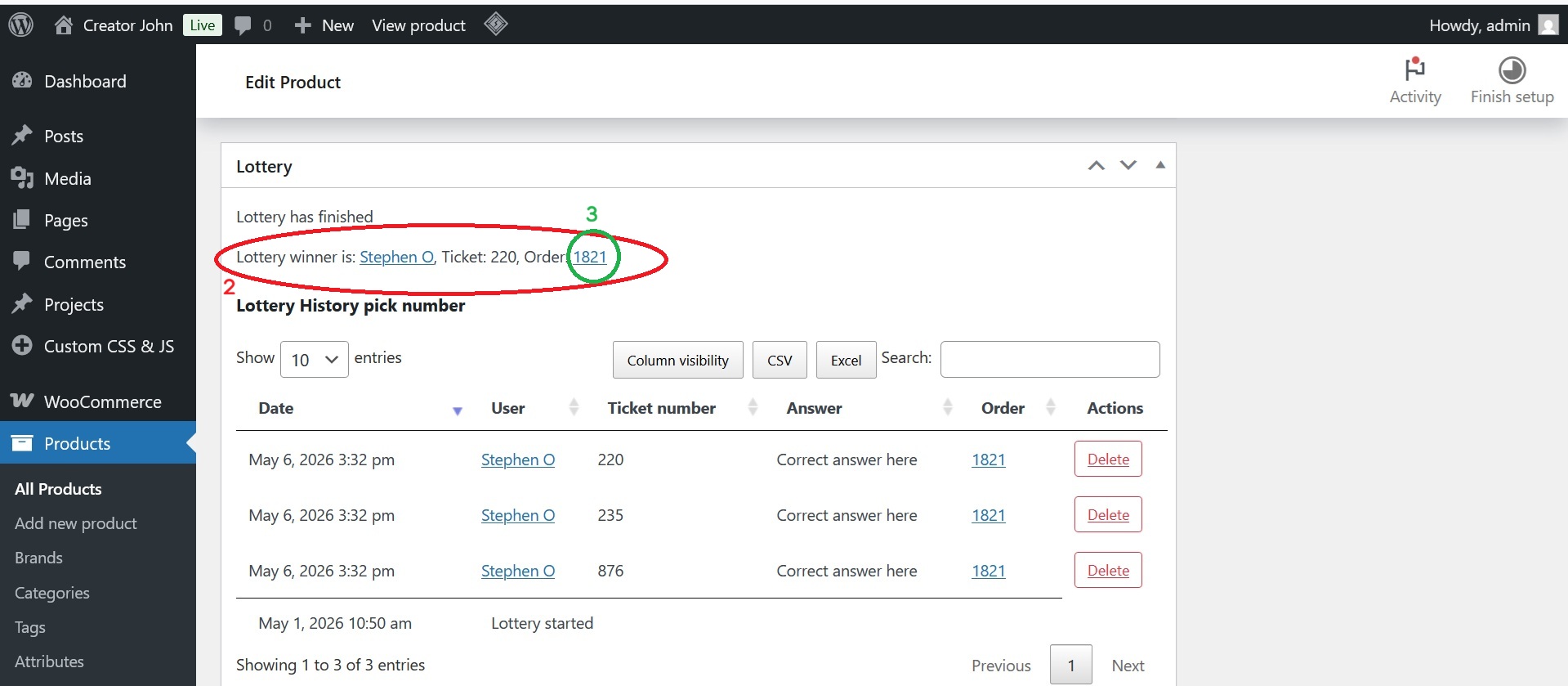
1) Scroll down till you see “Lottery”.
2) Here it says “Lottery winner is: XXXXXX, Ticket: XXX, Order: XXXX”. highlighted in red.
3) Click the order number next to “Order” highlighted in green. Then you will be able to see the winners contact details, such as their email address, address, and phone number if the winner provided one.
How do I export entries in a competition?
To export entries go to:
1) “Products” on the left side menu.
2) Find your product/competition and click “Edit”.
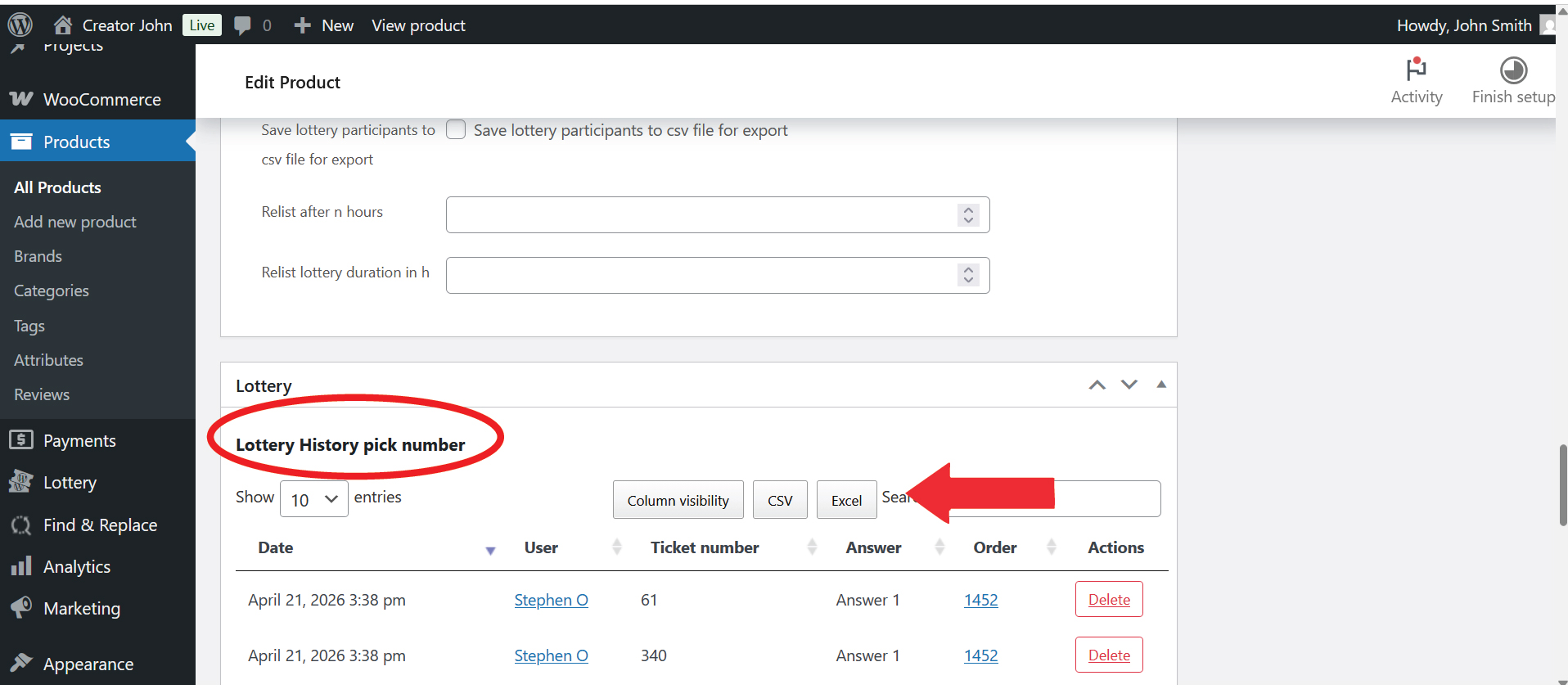
3) Scroll down till you see “Lottery History pick number“.
4) Click “CSV” or “Excel” depending on what format you require and it wil download.
I have issued a customer a refund, how do I remove their tickets from the live competition?
When you refund a customer, their ticket(s) are automatically removed from the live competition and made available again for a new user to purchase.
How do I receive the money from the ticket sales?
All money raised from ticket sales will go to your merchant account (Stripe, PayPal etc.)
When will I be billed?
You are billed the percentage fee of your monthly sales on the 7th of the month for the preceding month. For example, on the 7th of May you will be billed for the period 1st-30th April.